

Use 1080 × 1920 pixels, width first, at a 9:16 aspect ratio as your Instagram Reel production master. It gives you a vertical canvas for the video, captions and product, without starting from a crop of a landscape design.
Dimensions solve only the first part of the job. The moving video needs to work behind Instagram's controls, its feed preview needs to preserve the main subject, and the cover needs a separate thumbnail check. A correctly sized file can still hide the words that make the Reel useful.
See what a crop takes away
This saved Advibly-generated peach-can creative is 1152 × 2048 pixels: the same 9:16 shape as the recommended 1080 × 1920 master. The left panel retains the whole image. The right panel takes a centred 4:5 crop from those exact pixels. The can survives, but the space above it and part of the lower splash do not.
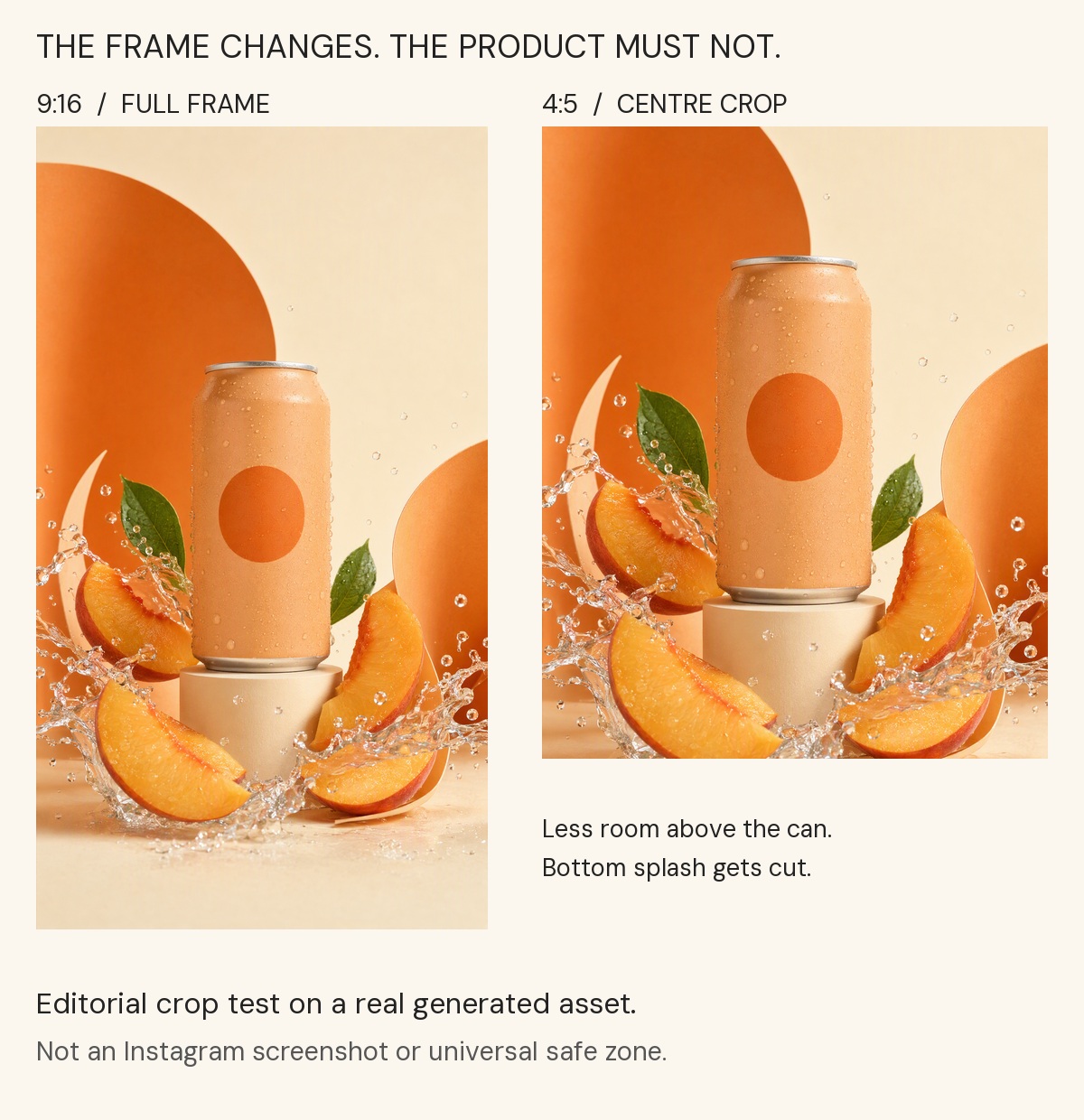
Editorial crop demonstration using a real generated asset, not a screenshot of Instagram. The 4:5 crop is a chosen stress test, not a claim that every Feed or grid surface currently uses it. Both panels contain the same source image; no product details were regenerated.
The source crop is 1152 × 1440, removing 304 pixels from the top and 304 from the bottom of the 2048-pixel image. A hook placed high in that empty area could disappear, even though the product remains visible. That is why ‘the can fits’ is not enough when the words carry the offer.
- For a 1080 × 1920 export, scale this kind of 9:16 source proportionally; do not change its width and height independently.
- Place your essential message where it survives the actual previews you inspect. If a crop cuts the message, move or simplify it in the source layout instead of shrinking every word.
- If the still becomes an animated Reel, check the moving product and every caption change. A passing still frame is not proof that the whole clip clears Instagram's interface.
You can reuse approved product imagery and brand context in Advibly to create the vertical scene or animate it. Use a precise editor for a numeric crop or layout adjustment; this comparison board was assembled from existing files, not produced by an Instagram safe-zone feature.
Create your vertical product scene in Advibly.
Generate your first creatives for free. Review the generated packaging against your product reference, then use the upload-route and three-surface checks below before publishing.
A practical Instagram Reel export card
These are working choices for making a vertical master. Confirm the current requirements of the route you use to upload: the Instagram app, a connected publishing service and a paid-ad placement are not interchangeable specification sheets.
|
Production decision |
Working choice |
|---|---|
|
Canvas |
1080 × 1920 pixels. |
|
Aspect ratio |
9:16, with proportional scaling throughout the edit. |
|
Frame rate |
30 FPS is a practical default for a new edit. Check the source and upload route before converting existing footage. |
|
Export format |
MP4 with H.264 is a practical starting point, not the only format every route supports. |
|
Cover source |
Keep an editable, high-resolution composition and adapt it to the cover control in your publishing workflow. |
|
Text placement |
Keep essential words away from observed controls and crop edges; inspect the actual preview. |
Meta's public Instagram Reels publishing sample recommends 9:16 and documents a 23–60 FPS range for its API workflow, alongside supported containers and codecs. That is API documentation, not a universal organic-app minimum or a specification for every scheduler.
Instagram's consumer Help and Reels-ad pages redirected to login during our September 11, 2026 check. This guide therefore doesn't relabel their previously recorded minimums, cover dimensions or ad guidance as freshly verified requirements. The working canvas above and the composition checks below remain distinct from those acceptance rules.
9:16 is a shape, not a resolution
Both 720 × 1280 and 1080 × 1920 reduce to 9:16. They have the same shape but different pixel counts. A 720 × 1280 source can fit a vertical composition without cropping; enlarging it by 1.5 in each dimension does not recover detail that wasn't recorded.
The existing example below is a useful distinction. It shows a notebook composed vertically throughout a small camera move. Its actual file is 720 × 1280 at 24 FPS, not the recommended 1080 × 1920 working master or a tested Instagram upload.
Open the vertical notebook example
Five-second AI-generated fictional example made with OmniFlash through Advibly, 720 × 1280 at 24 FPS. It illustrates framing, not an observed Instagram preview or an export prepared to this guide's recommended settings. Audio was removed without changing the picture.
Check the actual exported file, not just the project preset. A vertical project can contain landscape footage with black bars, and an export preset can change the dimensions or frame rate you intended.
Reframe the source instead of stretching it
Your three useful choices are to crop, contain the whole source inside a designed background, or rebuild the sequence for vertical viewing. Choose based on what the viewer must be able to read or see.
Square product image: make the spare space useful
Suppose you have a 1080 × 1080 product image and a 1080 × 1920 canvas. Keeping the image at its original size leaves 840 vertical pixels, or 420 above and below if centered. Those are layout calculations, not Instagram safe-zone margins.
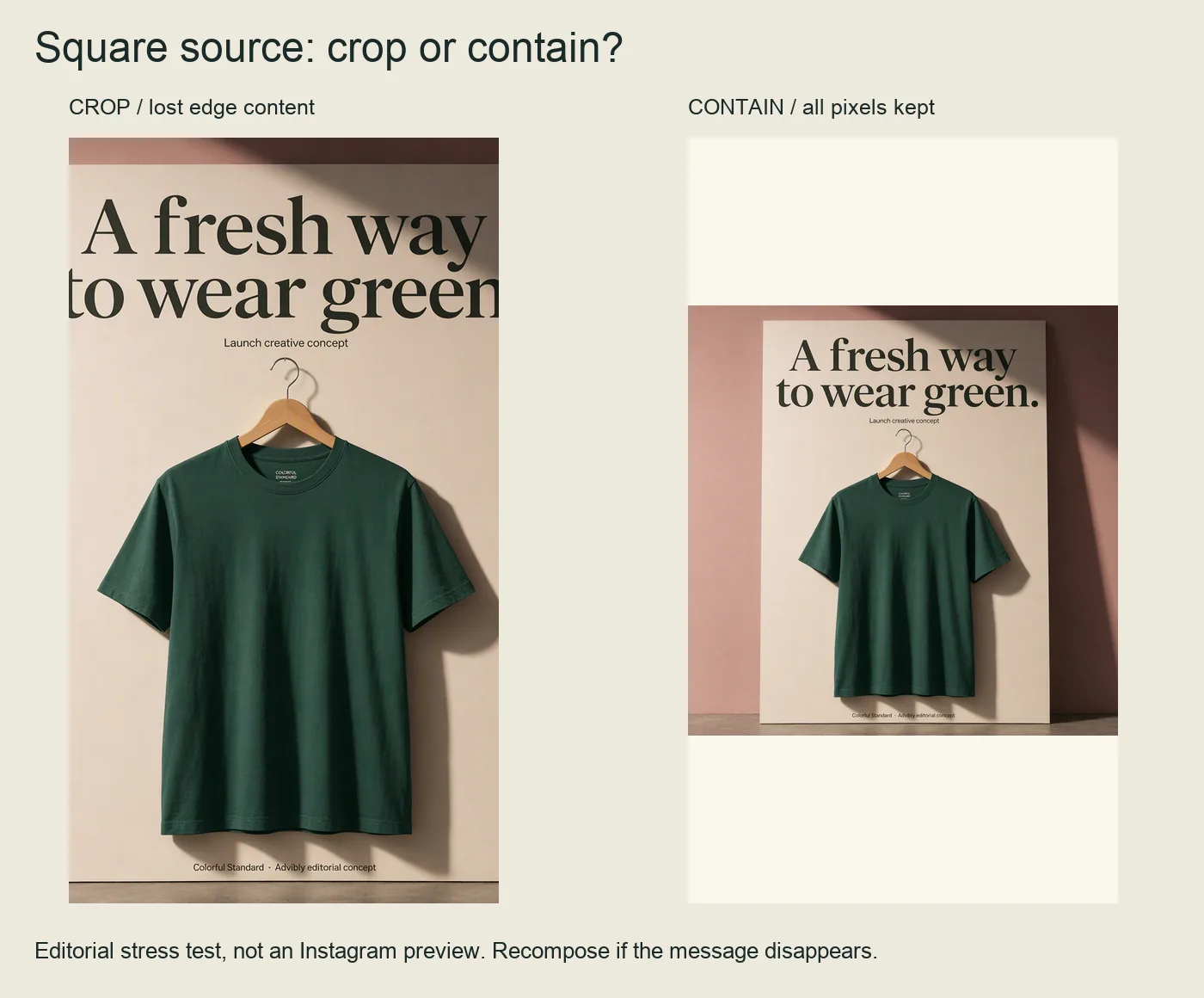
Actual square source: left is a center crop, right retains all source pixels inside a vertical layout. These are chosen stress tests, not Instagram screenshots. The square ad is newly generated; the crop/contain comparison is a local derivative.
Use the extra space for a compatible background and a short explanation, while keeping the actual product intact. If the image already has text at its edges, don't assume it can be enlarged and cropped without losing that text.
With Advibly, you can reuse the product photo and saved brand context to create a suitable surrounding scene, then animate the approved image. Inspect the product details after any generated edit. A new background shouldn't silently change the packaging.
Landscape footage: decide what you're willing to lose
For a 1920 × 1080 source to fill a 9:16 crop without distortion, the crop keeps only 607.5 pixels of the original width while retaining its 1080-pixel height. That is about 31.6% of the original width, before scaling to the output size. An editor will round the boundary to actual pixels.
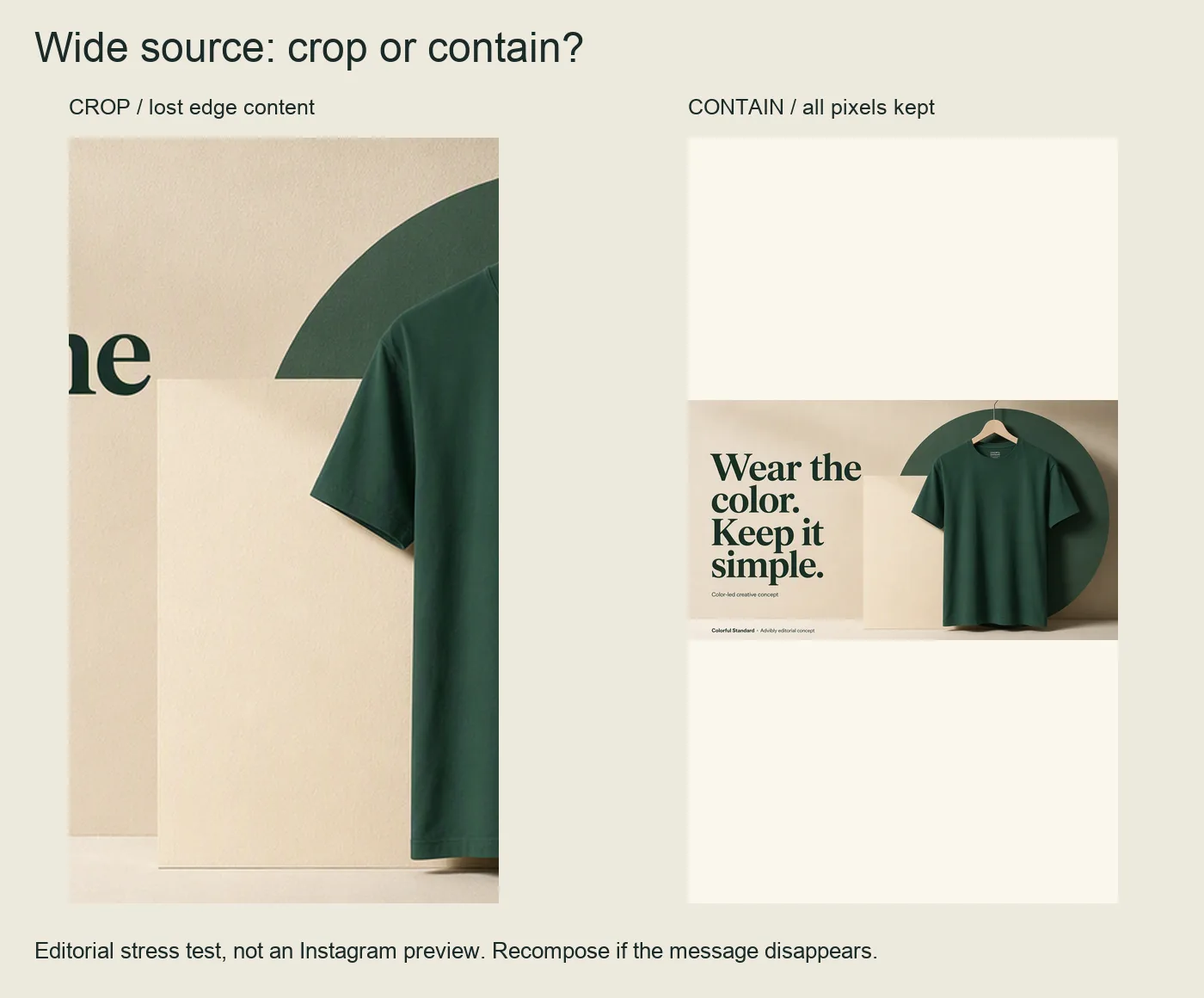
Actual landscape source: a center crop loses the wide composition. Containment preserves it but leaves unused vertical space; a genuine vertical redesign should not be mistaken for stretching.
Inspect a separately composed vertical image rather than stretching the wide source. This is a still specimen, not a new Reel.
This works if the important action occupies that narrow section. It fails when two people are far apart or a desktop interface needs its full width. Instead, contain the footage inside the vertical frame, show a deliberate close-up of each step, or rebuild the sequence from readable real screenshots.
For an app explainer, keep the genuine screen content. A generated approximation of the interface isn't a valid way to make a feature fit.
Play the actual motion exports
The same original Advibly-generated cube character arranges three spheres in these six-second films. Each canvas is composed separately around the complete landscape action, with proportional scaling and no stretched objects. These are silent editorial ratio specimens, not uploaded campaigns or platform-acceptance tests.
Vertical: 1080 × 1920
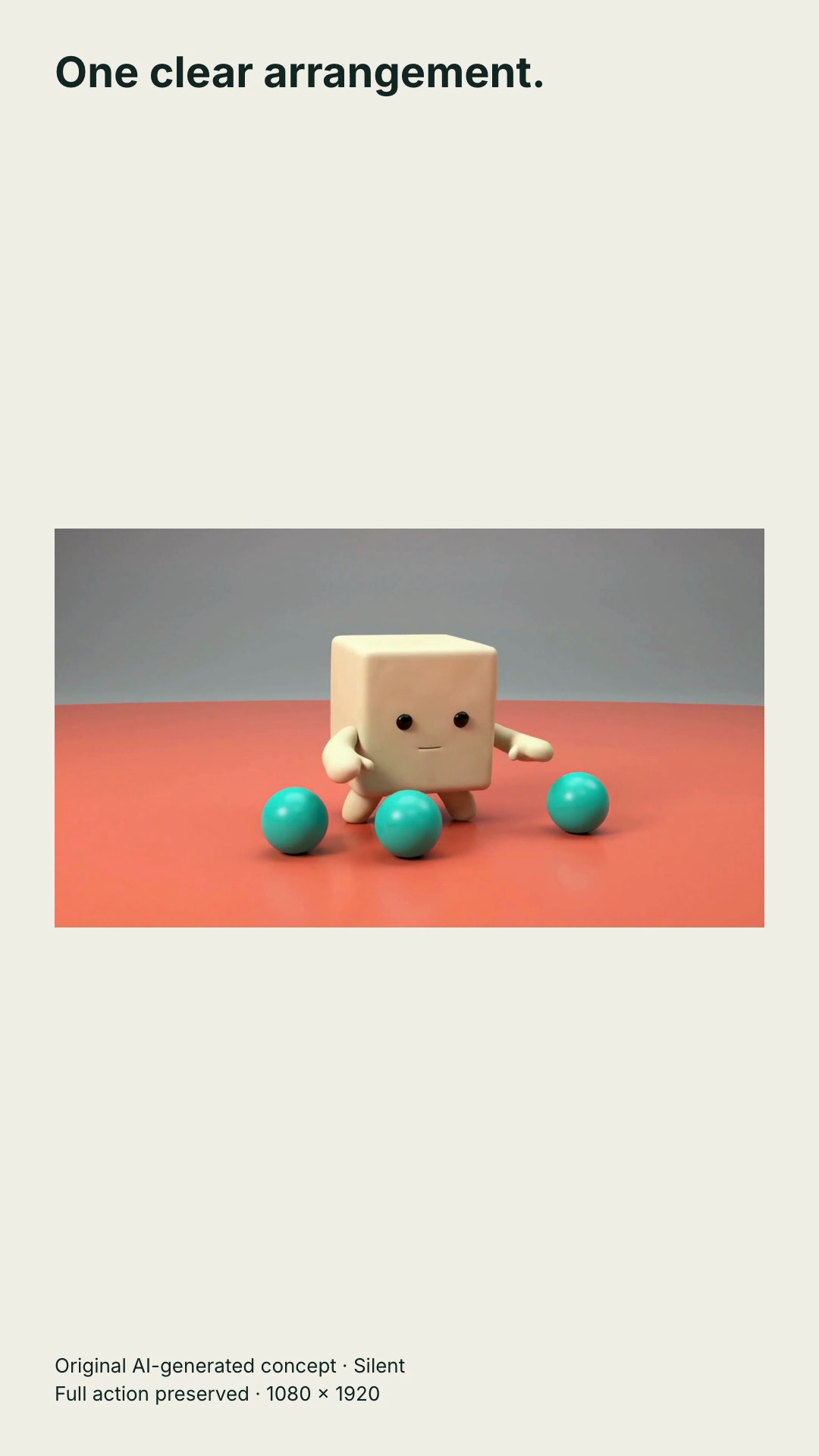
Open the complete 1080 × 1920 motion specimen (six seconds, silent MP4)
Input: one 1280 × 720 landscape film. Change: preserve its full field of view while placing the headline and disclosure outside the action. To reproduce, fit the footage uniformly inside the chosen canvas, leave room for the text, and play the exported file from start to finish. Check the spheres at both sides before deciding that a tighter crop is harmless. Increasing export dimensions does not create extra source detail.
Containment deliberately leaves more open space in portrait. It preserves this wide action; it is not a claim that this is the strongest feed creative. Choose a dedicated vertical shot when filling the frame matters more. The files have no audio track. Add and review appropriate sound if the selected placement requires it, and inspect the real uploader preview separately.
Vertical footage: inspect motion as well as the first frame
A product that starts in the center can move under a control later. Watch the opening, the key action and the ending, then play the whole clip. Pay particular attention to hands entering from an edge, camera movement and subtitles changing length.
Don't try to rescue an overcrowded scene by reducing all the text. Simplify the sentence or split the explanation into two shots. The vertical format is useful only if the content remains legible.
Check the video in the viewer and feed; check the cover in the grid
The three surfaces answer different questions. Don't force them into one imaginary universal crop.
|
Surface |
What to check |
|---|---|
|
Reel viewer |
Can the viewer see the product, face, essential words and action behind the current controls and caption area? |
|
Home feed |
Does the visible video or preview preserve the subject and central point before someone opens it? |
|
Profile grid and Reels tab |
Does the selected cover or thumbnail remain recognizable and readable in the crop actually shown? |
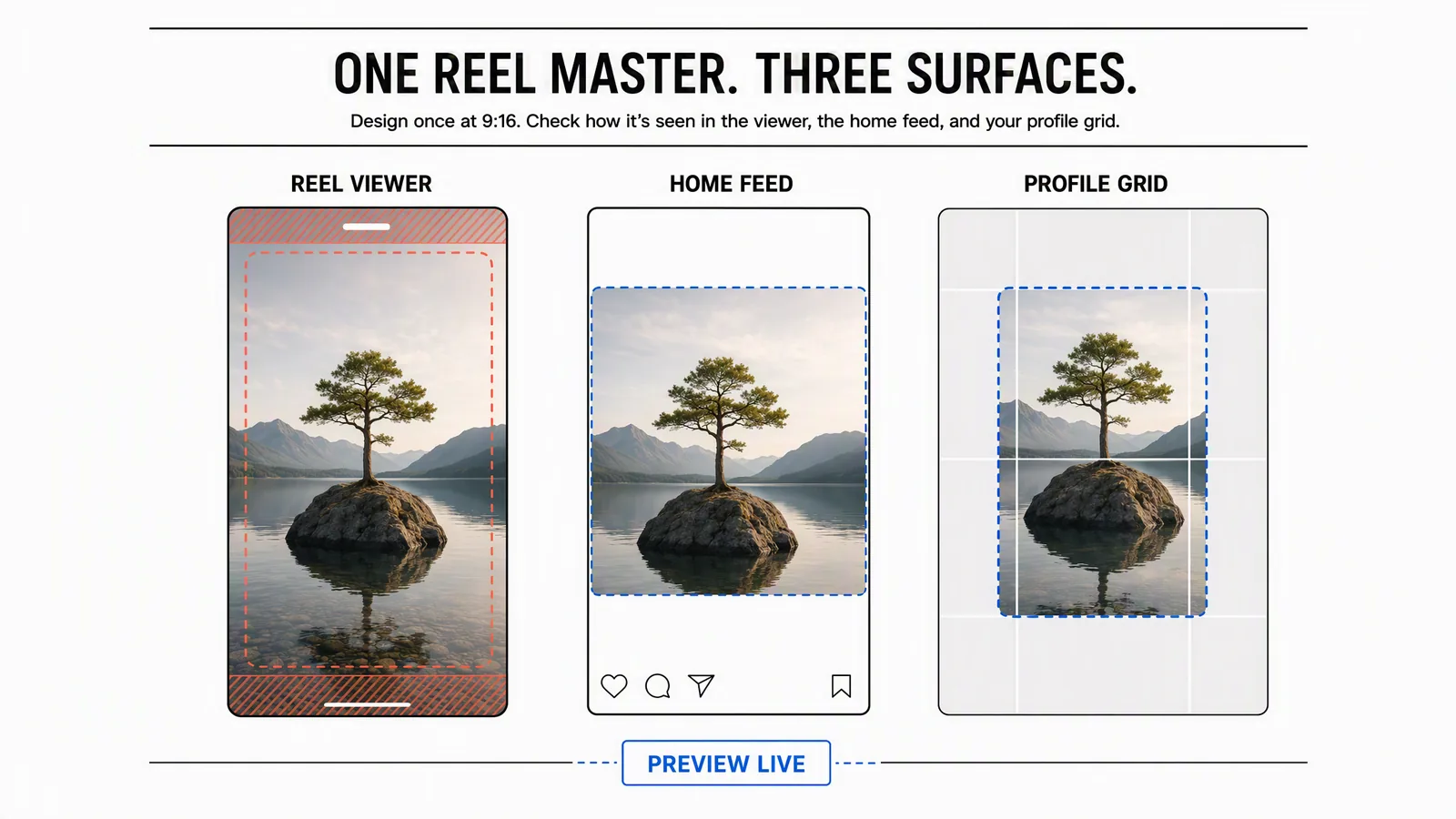
Editorial illustration, not a captured Instagram interface or a measured crop specification. The outlines show why separate previews matter. A separately designed cover has its own composition; its crop cannot be directly intersected with the moving video's coordinates.
Calibrate a video overlay from comparable frames
Use screenshots from your own target account and device to build a design aid. Start with a known frame from the video so you can recognize how it was scaled and cropped.
- Place the original frame on the 1080 × 1920 canvas.
- Compare it with the same frame as displayed in the Reel viewer or feed. Identify matching content points, the visible boundaries and any crop offset. Don't stretch an entire phone screenshot over the video canvas.
- Map the visible content back to the source frame and mark the actual obstructions from controls or captions.
- Compare only regions that map to that same source composition. If you can't determine the mapping, use direct visual inspection rather than inventing a pixel measurement.
- Keep the information needed in each surface clear of its observed obstructions. Check other important video frames too; a paused opening doesn't represent every subtitle or movement.
- Save the screenshots, date, device and app version if known with the overlay. Recheck after interface changes and before reusing it for another campaign.
This is your own review method, not an official Instagram template or a native Advibly feature. It reduces avoidable layout errors; it doesn't make a region permanently safe on every screen.
Keep the cover overlay separate
If the cover is a different image, it has different coordinates. Review its crop on that image's own canvas. Don't shrink the entire video's message into an intersection calculated from an unrelated thumbnail.
Even when the cover comes from the video, the selected cover position can differ from the video preview. Keep the subject and a short title easy to recognize, then check the actual grid and Reels-tab presentation. A cover can be attractive at full size and unreadable as a small thumbnail.
Avoid assuming every account has the same cover-editing controls or that one old square-grid template describes the current interface. Use the controls available in the account and publishing route you're actually using.
Put captions where they can be read
Treat the text inside the video, subtitles and Instagram's post caption as separate layers. They compete for space, especially near the bottom and right edge.
Start with the shortest sentence that preserves the meaning. Place it over a visually quiet part of the frame, then inspect the full subtitle sequence with controls visible. If the product moves into that area, change the scene or text position rather than covering the demonstration.
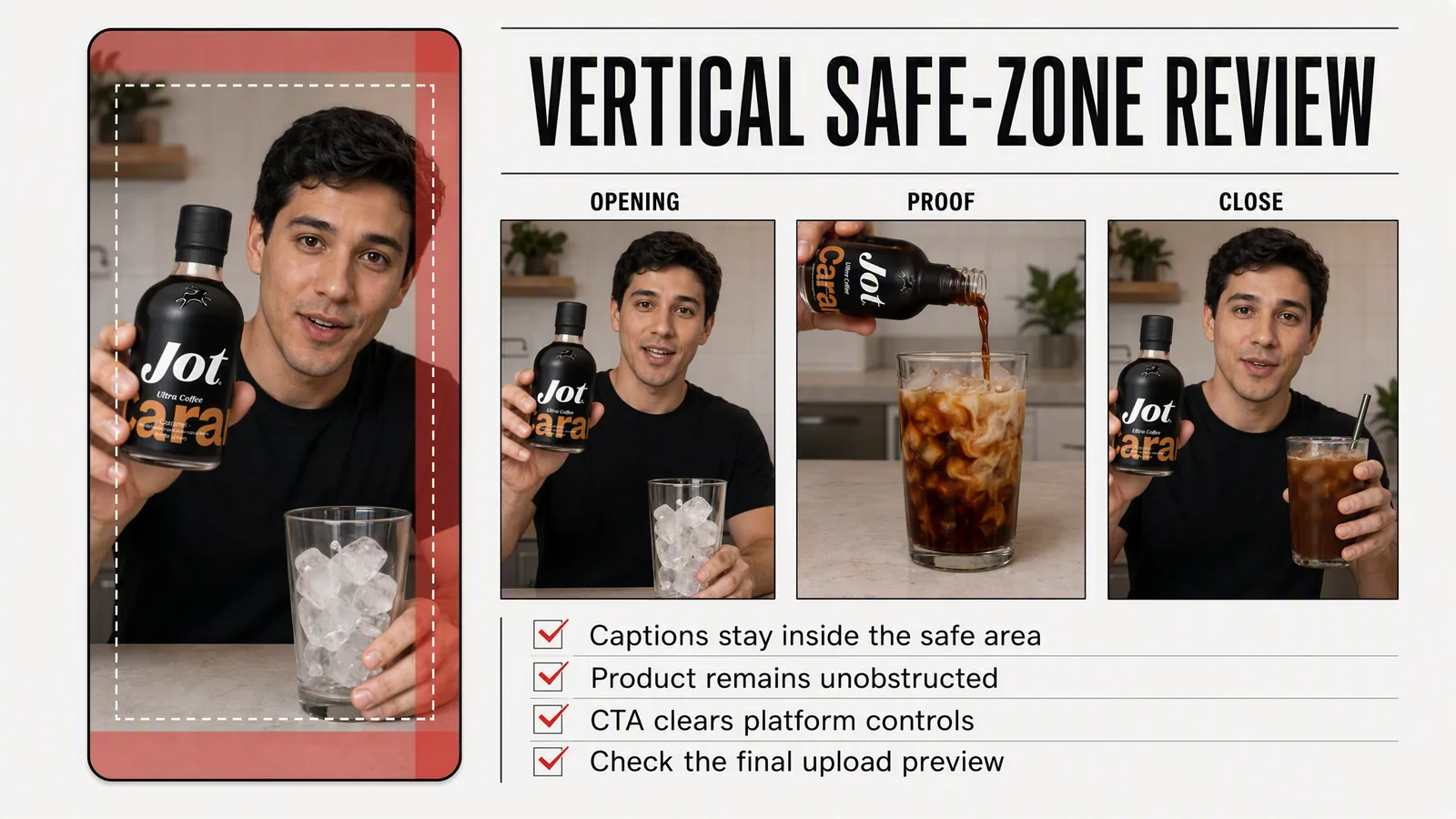
Reused editorial review illustration, not a real customer testimonial, product-performance demonstration or measured Instagram test. “Proof” labels a proposed story beat, not verified evidence. The guides and checkmarks do not certify caption placement, CTA clearance or current interface safety; no actual CTA or platform controls are shown.
For a paid Reel placement, use that placement's current preview and requirements as well. A diagram for an organic video isn't a substitute for ad-placement review, and a TikTok or YouTube Shorts overlay isn't automatically an Instagram overlay.
Build, review and publish the vertical version in Advibly
Begin with the existing assets, not a blank generation request. Inspect your saved product photos, app screenshots, previous videos and approved covers. Choose the source that can remain readable at 9:16. Keep each client's brand context separate when working across brands.
Then choose the output that suits the message. A Shopify product photo can become a short animated scene. An app listing and real screens can anchor a narrated explainer. A presenter-led clip or a Whiteboard Doodle sequence can explain one product benefit without cramming a full desktop page into a phone frame. Advibly's creative skills provide structured methods for supported video workflows.
Ask for the vertical layout explicitly, including the subject that must remain visible and any approved caption text. Reuse suitable assets and generate only the missing scenes. Keep the editable source so a crop correction doesn't require rebuilding the whole campaign.
For example, a product-Reel brief could say:
Use our saved brand and approved product photo. Create a vertical product scene with room for a short hook and subtitles, keeping the product label readable throughout the movement. Reuse a suitable existing scene if one is available. Do not add performance claims. Prepare the video and a separate cover for review; don't bake a supposed universal Instagram safe-zone template into the artwork.
Work in the portal or coordinate supported steps through a connected MCP assistant. The AI Reel Maker and image-to-video workflow are useful production starting points. The generated file's dimensions and the final edit still need checking.
Advibly can create captions, schedule approved posts and publish to supported connected Instagram accounts. Select the correct destination, verify the cover controls offered by that route, and check publication status afterward. “Scheduled” is not the same as “published.” This production capability doesn't mean every native Instagram effect, music choice, sticker or thumbnail control is exposed through every connected client.
If the creative depends on an in-app feature your route doesn't expose, finish that part in Instagram. After publication, watch the actual result on the target device and use analytics to inform the next iteration. Keep layout corrections separate from claims that a format change caused a performance improvement.
Final check before you queue the Reel
- The exported video is the intended width, height and frame rate, not just the editing timeline.
- Real product details and app screens remain accurate and readable.
- The subject stays visible during movement, not only in the opening frame.
- Captions and essential words clear the controls in the previews you checked.
- The cover is intentional and has its own crop review.
- The file meets the requirements of the actual publishing route and, if applicable, ad placement.
- The correct account, caption and approved creative are selected before scheduling.
After the post publishes, inspect the result rather than assuming a successful upload means every crop looks right. Save any useful preview observations with the date so the next Reel starts from evidence, not an old template.
Instagram Reel size questions
Is 1920 × 1080 the same as 1080 × 1920?
No. Width comes first. 1920 × 1080 is landscape; 1080 × 1920 is portrait. Rotating or stretching a finished landscape ad isn't the same as composing it for vertical viewing.
Can I use a 720 × 1280 video?
It has the correct 9:16 shape, but less detail than a 1080 × 1920 source. Check the actual file and the requirements of your upload route. Upscaling changes the pixel dimensions, not the amount of original captured detail.
What exact safe-zone pixels should I use?
Use measured guidance for the actual placement or a dated overlay from the interface you checked. This guide doesn't offer a universal organic safe rectangle: controls, crops and the separate cover can create different restrictions. When exact mapping is uncertain, inspect the real preview.
Should the Reel and its cover be the same image?
They can share a visual direction without being identical. A video frame can work as a cover if it communicates the idea clearly at thumbnail size. Otherwise, create a deliberate cover from the same brand assets and review its crop separately.