
Yes, you can schedule Instagram Stories. Use Meta Business Suite or an eligible connected publisher for automatic delivery. If the Story needs a link, poll or other feature unavailable through that route, schedule a reminder and finish it in Instagram yourself.
The distinction matters before you make the creative. A finished product image can be ready for automatic publishing; the same image with a planned interactive poll still needs the poll added through a supported control. Drawing a poll into the image doesn't make it tappable.
This guide covers four practical routes: Business Suite, a connected auto-publisher, a scheduler's mobile reminder, and a calendar reminder with manual posting. The last two schedule a person's work, not an unattended upload.
The same artwork can need two different publishing routes
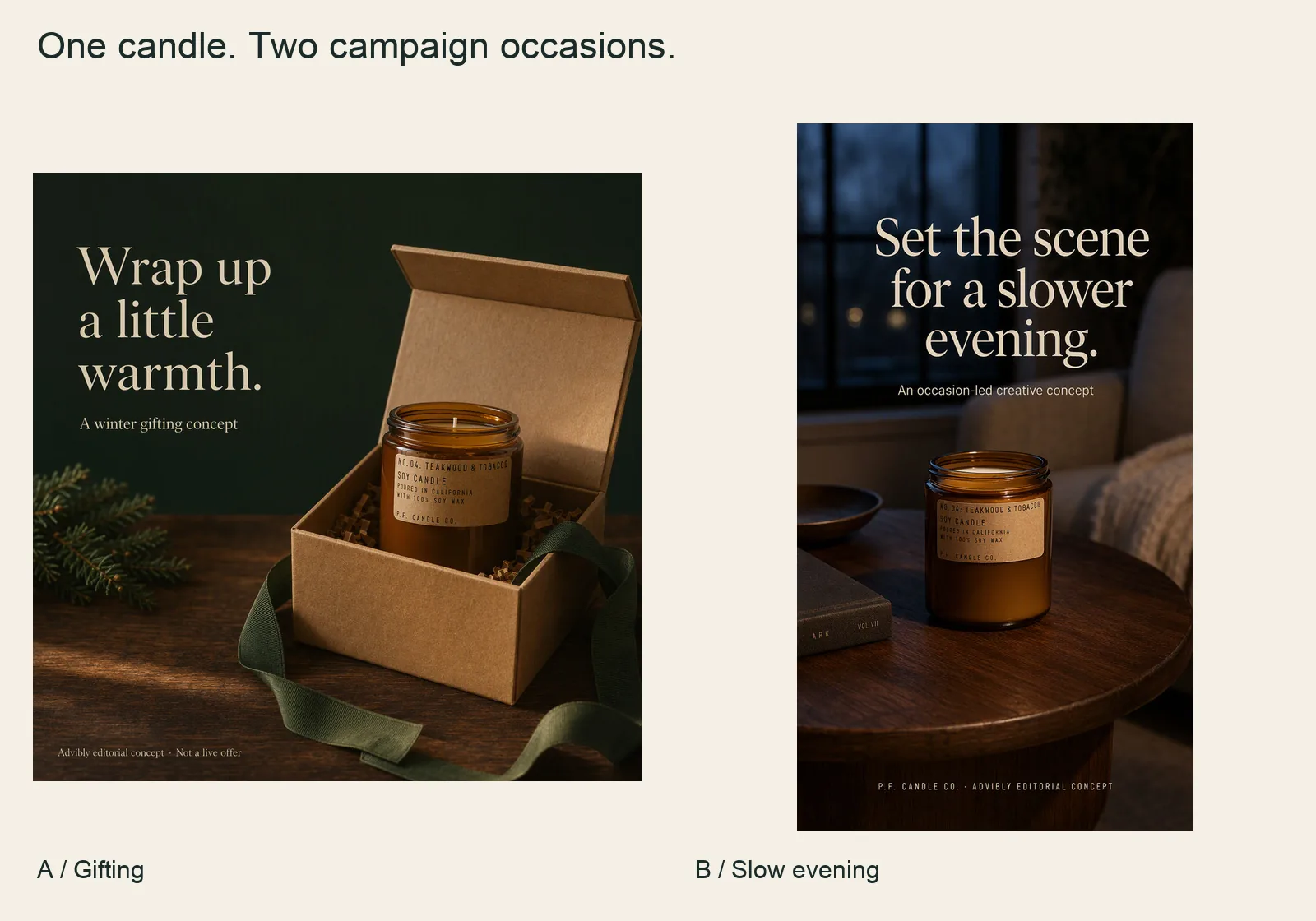
Two actual Advibly candle concepts: gifting and a slower evening. An announcement can use one image. A choice Story can use both, but a drawn question is not a working Instagram poll.
P.F. Candle Co. Teakwood & Tobacco Standard Candle product source
Build the choice Story from these materials
- Use your own cleared product reference and reviewed scene variants.
- Prepare the images for the vertical frame without stretching; label the directions accurately.
- If voting matters, choose an account and route that actually supports the poll, or assign a person to finish it inside Instagram.
- Provide that person the exact images, order, question and destination. Check the published result separately.
For a simple non-interactive announcement, use one selected asset and a supported automatic Story route if the account and format are eligible. Advibly supports creative production and connected social scheduling, but generic Instagram support alone does not establish your connection's exact Story or sticker controls. The route comparison below helps make that final choice.
Generate your first creatives for free in Advibly.
The free start applies to eligible creative generation, not a promise of free publishing. The sequence above is a reproducible production brief, not a Story we submitted to an audience.
Choose your Story scheduling route
Start with the simplest option that can complete the whole Story, including its action.
|
Your situation |
Start here |
|---|---|
|
Business account with finished media |
Business Suite or a connected auto-publisher, if the connection is eligible and no unsupported native additions are needed. |
|
Several brands or a broader content calendar |
A connected publisher, with separate destinations and Story-specific support. |
|
Creator account |
Check that publisher's Story rules. Use its mobile reminder if direct delivery isn't available. |
|
Link sticker, poll, music or other app-only finish |
Scheduler reminder plus Instagram completion. |
|
Personal account or occasional posting without a scheduler |
Calendar reminder plus manual Instagram posting. |
|
A sequence whose order matters |
Choose a route that handles the sequence as required; keep frame-level instructions and check the result. |
Vendor rules aren't interchangeable. Later's supported-post table, updated April 28, 2026, lists Story Auto Publish for Business profiles only. Its Story scheduling is a paid-plan feature. Don't assume that a tool's general support for Creator accounts applies to every format.
Route 1: Meta Business Suite
Business Suite is a sensible starting point when your business already manages its Facebook and Instagram presence through Meta. Select the connected business and intended Instagram destination, prepare a Story, choose the available future scheduling control, and review the resulting calendar entry.
Check that the entry is an Instagram Story, not a Facebook Story or feed post. If you select both networks, review both destinations independently. An identical image doesn't guarantee identical native features.
Meta's official Business Suite scheduling demonstration, published September 9, 2022, includes Facebook and Instagram Stories. It establishes the route, not today's exact button positions. The detailed Meta Help pages were login-gated during our September 11, 2026 check, so these are workflow steps rather than a claim that we tested your current interface. If the Story scheduling option isn't available for your connection, move to a supported publisher or manual route.
Route 2: A connected auto-publisher
Use this when you want a prepared Story to publish without a phone handoff. In the chosen publisher, select the Instagram account and Story format, attach the approved media, confirm automatic delivery, then set the date and time zone. Read the saved entry back before leaving the composer.
Buffer's current scheduling guide describes automatic publishing for eligible professional accounts and notification publishing for personal accounts or unsupported features. Adding a Story link, music or a sticker can switch the mode to Notify Me. A change to the creative can therefore change who must act at publishing time.
Advibly combines creative production, calendars, scheduling, publishing and post-publication analytics for supported connected accounts. Use its social media scheduler as part of that workflow, selecting the destination and supported format you actually need. Exact Story controls, account eligibility and native additions still depend on the selected connection; a generic Instagram connection isn't a promise of every Story feature.
For team review, check the Story-specific workflow too. Later's Story guide, updated June 25, 2026, says its team collaboration and content approval features aren't available for Stories. Keep approval in your own handoff when the selected tool doesn't provide it for this format.
Route 3: A scheduler reminder with mobile completion
Choose this when the finished Story depends on Instagram-native features. The scheduler organizes the slot and materials; a person completes the post on a phone.
Sprout's mobile publishing guide supports assigning a Mobile Publisher and adding per-frame notes or a Link Sticker URL. The publisher opens the reminder, moves into Instagram, adds the required elements and posts. The stored URL is an instruction for the mobile finish, not evidence that a working link sticker has already been published.
Before relying on a reminder, confirm who will receive it, that their phone can open the files, and that they're signed into the intended Instagram account. Give a backup owner the same instructions. A push notification delivered to an unavailable colleague is not a completed Story.
Route 4: Calendar reminder plus manual Instagram posting
For an occasional Story, a normal calendar event can be enough. This is an organizational method, not an Instagram auto-publishing feature.
Create an event with the account name, planned posting time and time zone. Attach or link the final files in numbered order. Put the exact native text, destination link and intended sticker choices in the notes. Open those materials on the publishing phone before the event is due.
At the chosen time, open Instagram, confirm the account, assemble the Story and publish it. This avoids buying a scheduler just to remind yourself, but you own the entire handoff. It is a practical fallback for personal accounts and last-minute native edits.
Decide what belongs in the file and what belongs in Instagram
Fixed design and native interaction are different layers. Decide which is which while preparing the asset, not when a launch is already late.
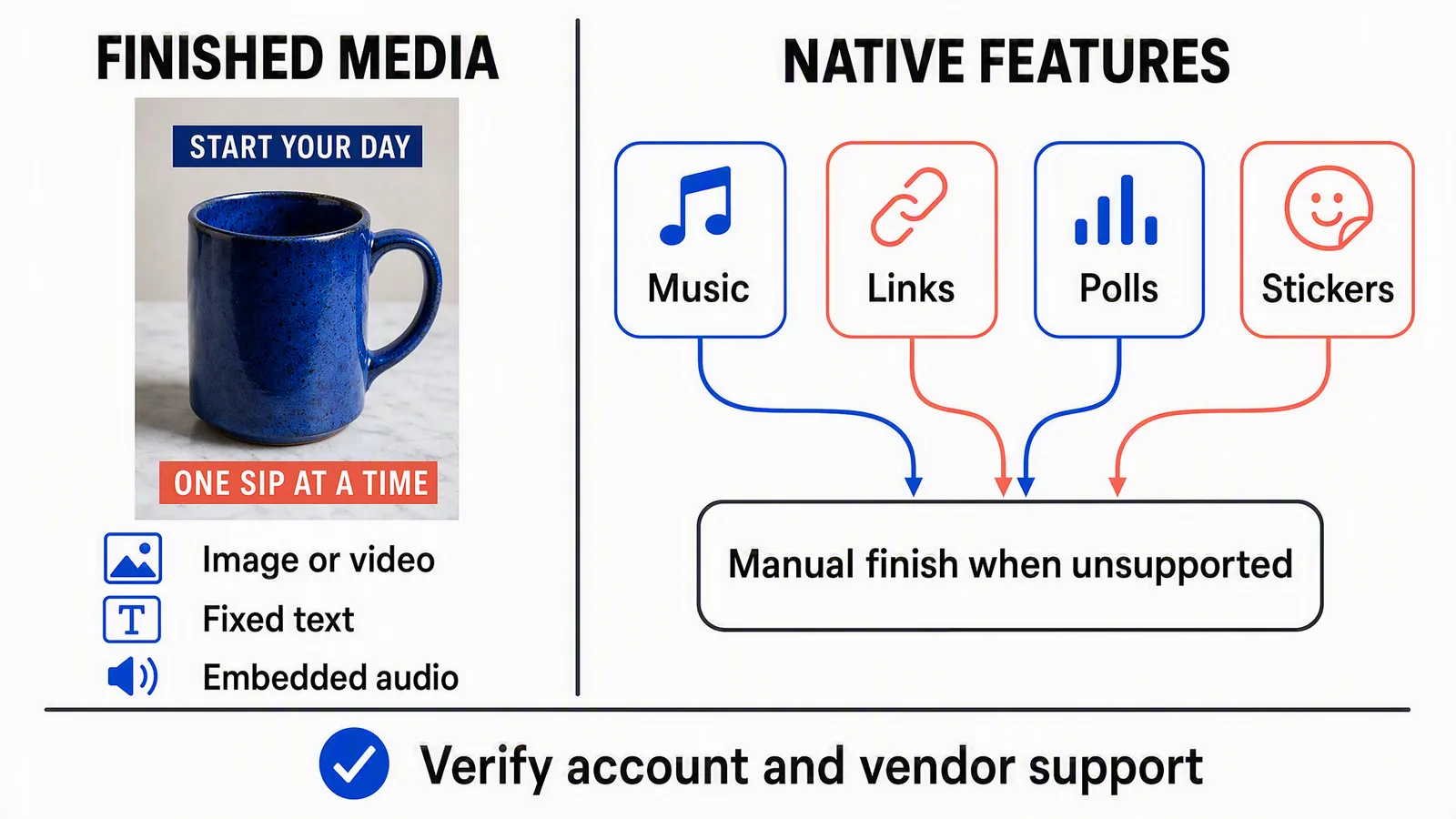
Editorial illustration using a fictional mug creative, not an Instagram interface or product-performance example. The words on the mug image are pixels. Music, link, poll and sticker controls depend on the selected publishing route; the checkmark is a reminder to check support, not a completed test.
Your exported image can carry a headline, product photo, offer terms and visible disclosure. Your exported video can carry recorded narration, subtitles or other audio you have the right to use. Those elements travel with the file, subject to the destination's media requirements.
A working link sticker or poll is different. You need the actual control and its destination or answer options. Later's Story documentation routes stickers, polls, music, links and effects to notification publishing for completion in Instagram. Don't generalize that vendor's exact feature list into a permanent restriction on every publishing product.
Consider a launch Story that says “Choose the next colour.” If audience voting is the point, a static drawing of two buttons doesn't complete the brief. Keep the poll and select a route that supports it. If you only want to announce a colour already chosen, change the message and use a finished static creative. The right decision is about the viewer's job, not just how much automation you can keep.
For an offer, check the exact price, eligibility and end time against the current source before baking them into the file. Keep a clean editable version so you can correct the offer without rebuilding the entire campaign. Don't assume music available in one account is cleared for every commercial use.
A worked Story handoff you can copy
A small team doesn't need a second project-management system. It needs enough information for someone other than the designer to publish the right version.
The example below is fictional: a notebook shop plans three frames for a Saturday launch. Frame 1 introduces the notebook, frame 2 shows the inside pages, and frame 3 invites the viewer to open the product page. Because the last frame needs a link sticker, this example deliberately uses manual completion for the sequence.
|
Handoff field |
Fictional example |
|---|---|
|
Publication ID |
Notebook launch, sequence A. |
|
Destination |
The shop's exact Instagram account, identified by handle and account owner. |
|
Account and connection |
Business account; manual publisher can access the intended profile. Scheduler reminder is optional. |
|
Approved asset and order |
Final files 01-intro, 02-inside, 03-shop, all version 3. No mixing earlier exports. |
|
Native features |
Frame 3: link sticker to the approved live product URL, with “View notebook” text. No poll or added music. |
|
Delivery mode |
Reminder plus manual Instagram finish for all three frames. |
|
Schedule and time zone |
September 12, 2026, 10:00 Asia/Kolkata, equivalent to 04:30 UTC. Reminder ten minutes earlier. |
|
Approval and version |
Owner approves version 3, frame order, destination URL and link text together. |
|
Manual owner |
Priya publishes; Arun is the backup. Names are fictional. |
|
Success evidence |
Pending. After posting: record the three visible frames, correct order, working destination and check time. |
|
Recovery owner and route |
Arun checks the account before taking over. No second upload while Priya's result is unresolved. |
In your real handoff, replace the destination description with the actual handle and paste the complete approved URL. A label such as “product page” isn't enough for someone publishing from a phone.
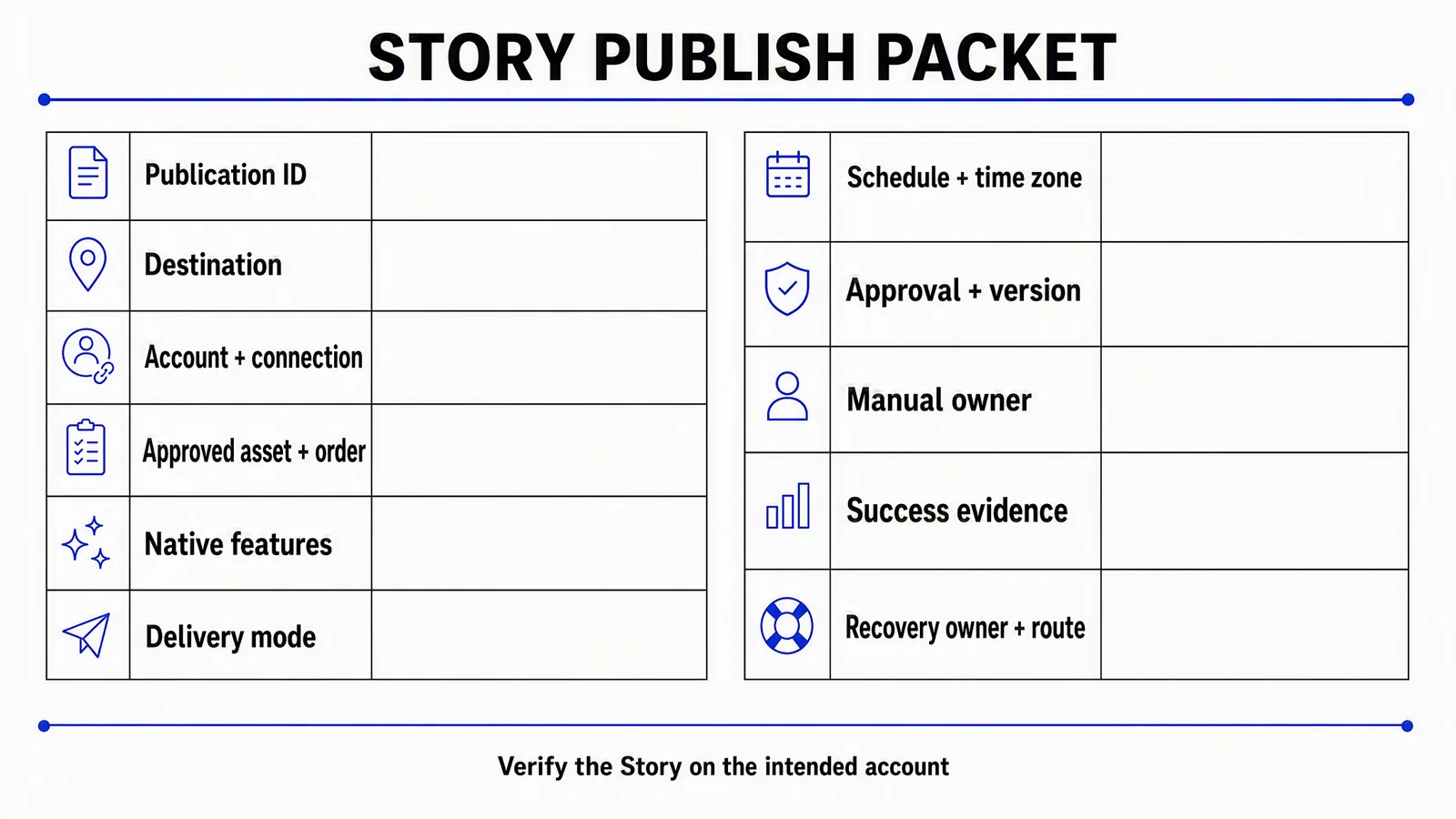
Blank editorial worksheet, not a native Advibly approval screen or an interactive form. Use the text table above as the accessible copyable version. Plan the success check before scheduling; fill its result only after publication.
The ten-minute reminder is this example's preparation allowance, not a platform requirement or a promise of exact delivery. If your publisher displays UTC, enter 04:30 for this example; if it displays Asia/Kolkata, enter 10:00. Confirm the time zone actually saved with the item instead of converting the same time twice.
For multiple frames, follow the chosen product's sequence rules. Buffer documents separate Story items for multiple images or videos. Later supports multi-frame Stories and says a failed Auto Publish frame prevents later frames in that batch from publishing. These are different delivery behaviors, not two names for an Instagram feed carousel. Check what happened to every frame before repairing a sequence.
Prepare the campaign in Advibly without starting from scratch
Begin with the right saved brand and existing asset library. A product photo, approved campaign image or real app screenshot is usually a better starting point than a new prompt that has to guess the product. For agencies, keep the client's brand context and publishing destination separate from those of other clients.
For the notebook example, reuse the approved product photo for the introduction, a real inside-page photo for the detail frame, and the same visual treatment for the final action. Advibly can revise backgrounds, create related static directions and animate a still when motion helps. A simple page reveal is more relevant here than an unrelated cinematic scene. Review generated product details and text against the source before using them.
For an app launch, start from the listing and real screens. Make a short feature explainer, then a Story frame that points to the next action. An illustrated Whiteboard Doodle sequence can explain the idea; the actual screen should demonstrate what the app does. Don't let a generated interface stand in for a feature the product doesn't have.
Use the Instagram Story Generator for the creative, and carry the approved files into the chosen publishing workflow. You can work in the portal or coordinate supported operations through MCP. The assistant can connect the production steps, retrieve assets and manage supported social scheduling; one initiating brief doesn't eliminate the need to review what will be posted.
After publication, use available status and analytics to decide what to improve. Record the question you wanted the Story to answer, such as whether the detail frame made the product clearer, before interpreting the results. Check which metrics your connected destination exposes. A single launch isn't proof that one background, posting time or generated style caused a sales change.
If the same campaign also includes a supported Instagram post with keyword comment-to-DM delivery, configure that post separately. It is not a replacement for a Story link sticker or a claim that Story replies trigger the same automation. Keep the action promised in each creative aligned with the mechanism you've configured.
What to do when a scheduled Story doesn't appear
Check the Instagram account and current delivery state before uploading a replacement. The safest first question is whether the original can still publish.
|
What you find |
Next action |
|---|---|
|
Reminder sent, but no Story |
Contact the assigned publisher. Confirm whether they started or completed the manual finish before the backup takes over. |
|
Login or permission error |
Restore the intended connection, inspect the failed item's state and follow the publisher's recovery instructions. |
|
Media rejected |
Read the actual rejection, correct that file and preview the replacement. Don't repeatedly submit the unchanged export. |
|
Processing or uncertain result |
Check the destination and service status. Don't launch a competing manual upload until the original state is resolved. |
|
Only part of the sequence is visible |
Record which frames exist. Decide whether to complete, replace or withdraw the sequence; don't blindly repost everything. |
|
Wrong account or wrong offer |
Pause remaining related items, notify the owner and agree the correction before reposting. |
|
Time is wrong |
Check the saved time zone and whether delivery has started before rescheduling. |
When checking the result, inspect the action as well as the image. The right creative with an incorrect link, missing poll or wrong frame order is a different outcome from the one approved. Keep a short record of the correction so the next person doesn't repeat it.
Story scheduling questions
Can I schedule a Story directly in the Instagram app?
Don't use instructions for scheduled feed posts or Reels as evidence of a Story scheduling control. For a planned Story, use one of the four routes above. If your app offers a Story-specific scheduling option, follow its current eligibility and feature rules; otherwise use Business Suite, a supported publisher or a reminder.
Can a personal account use automatic Story publishing?
Buffer's documented route for personal accounts is notification publishing, not direct automatic publishing. A calendar reminder and manual Instagram post also works as an organizational method. Check a provider's current account requirements before changing your account just to access one scheduling feature.
Does uploading a caption add it to the Story image?
Don't assume a separate caption field becomes visible Story text. Put fixed wording into the approved asset or specify the native text the mobile publisher must add. Preview the actual Story rather than relying on a caption stored beside the file.
What should I check before leaving a Story scheduled?
Confirm the exact account, Story format, asset order, delivery mode and time zone. For a reminder, confirm the owner and native finishing instructions too. Leave publication evidence pending, then check the intended Instagram account after delivery.
Choose the route before making the final creative. Then the person preparing the Story and the person publishing it are working toward the same finished result.