A product launch video can introduce a use case, reveal the product or demonstrate a real action. Those are different jobs. The actual creative below shows an app-inspired motion sequence and a still-to-video product treatment, followed by a guide to choosing the right launch format.
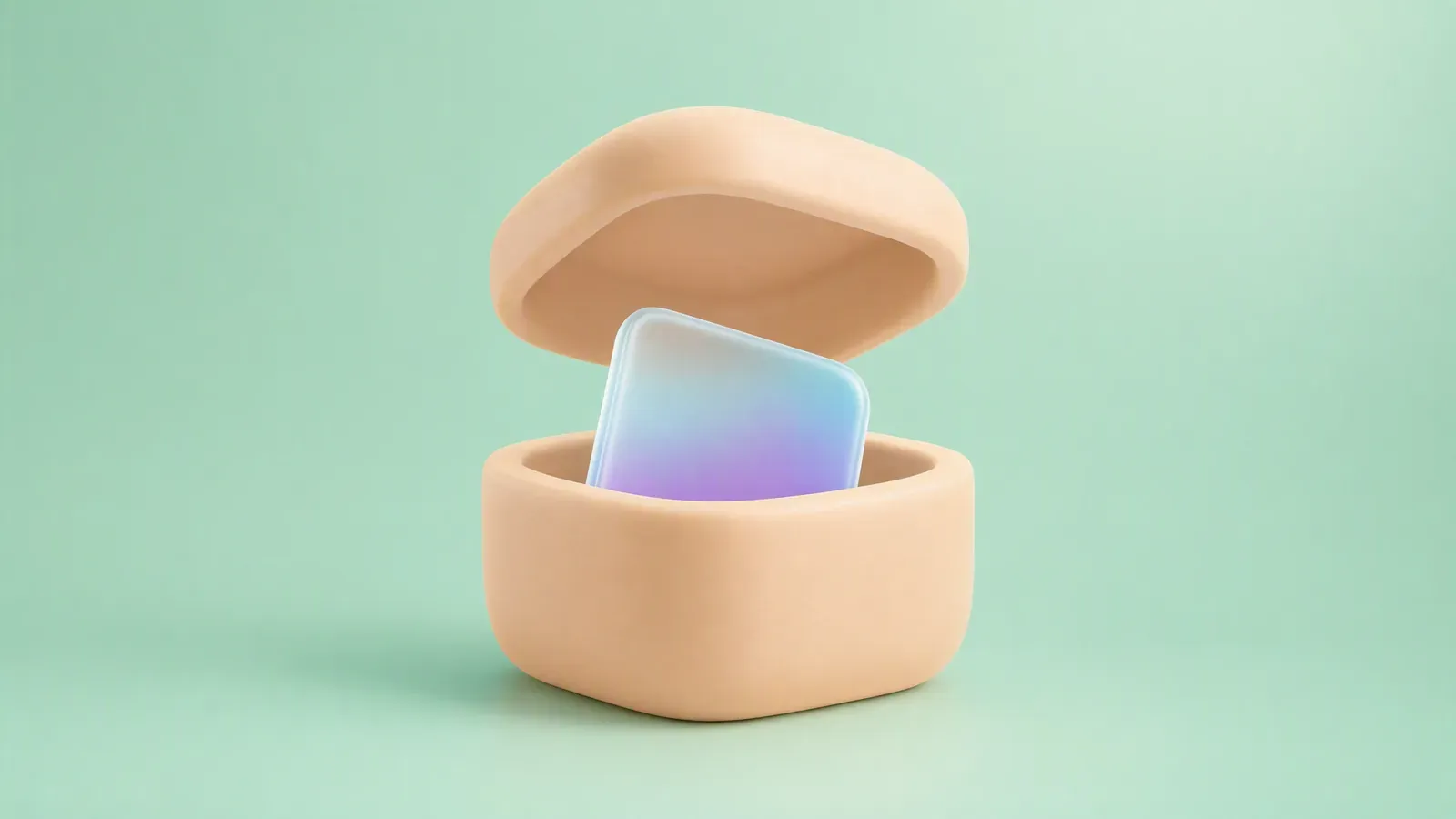
The AllTrails-inspired material is spec creative, not an official launch or a recording of the app working. The peach can is fictional. Both are real existing creative outputs; neither proves customer adoption or launch results.
App launch creative: move from the setting to the product detail
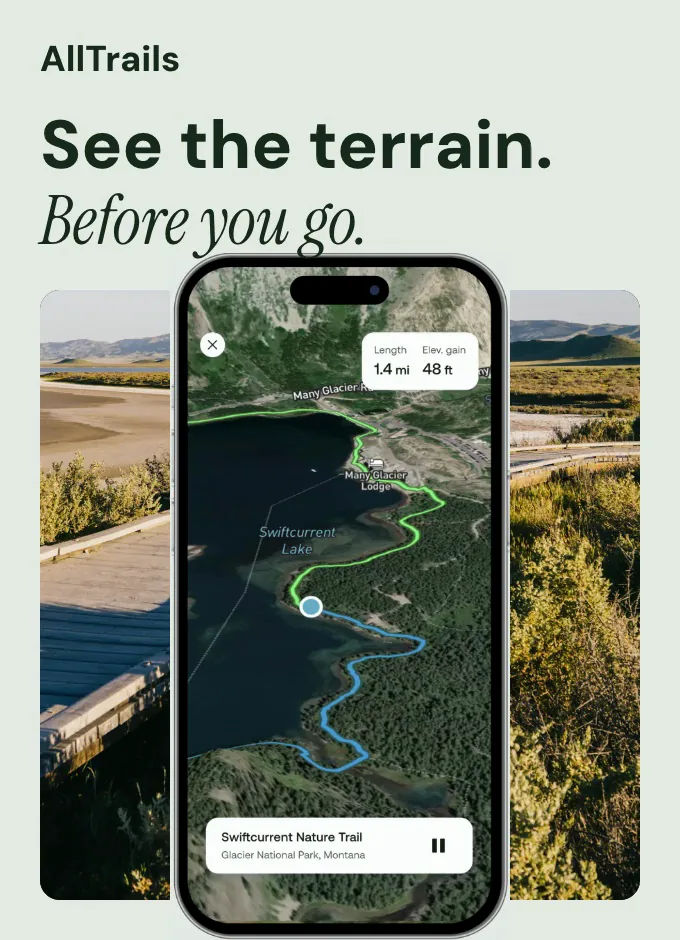
Watch the four-second app-inspired motion sequence (silent MP4). The opening combines outdoor context with phone-map imagery; the sequence moves closer to the phone detail.
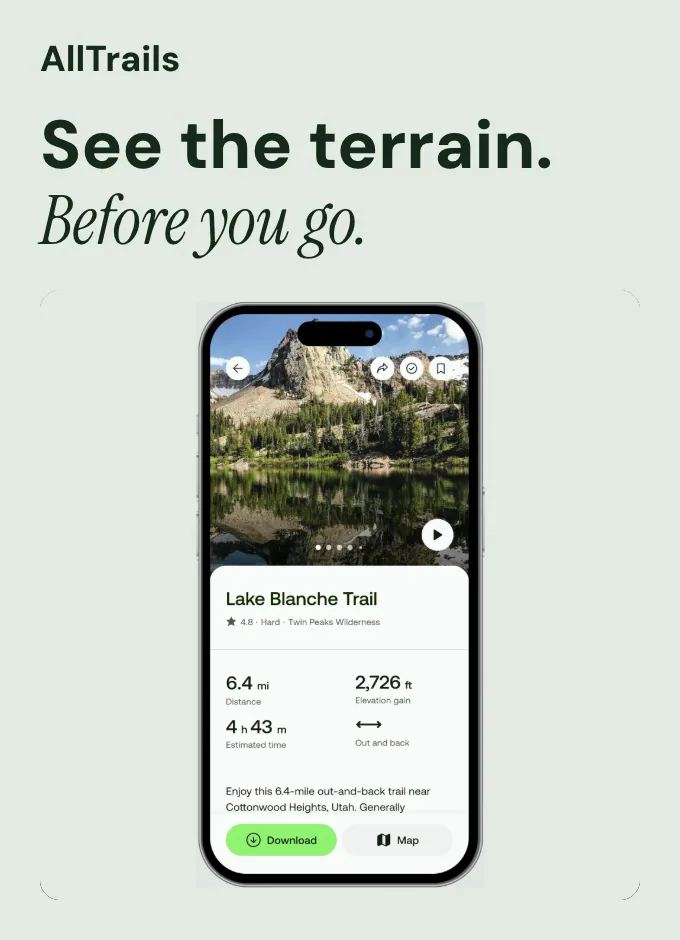
The stills are the actual opening and ending artwork used in this sequence, not invented screenshots of a generation session. The short edit makes a use case visible: an outdoor destination and a map belong in the same story. It does not demonstrate route finding, map accuracy or a currently available interface interaction.
For your own launch, supply the current app listing and real screens. Choose one use case, create supporting context in Advibly and assemble a shot that gives the important screen enough space. If the claim is “save this route,” add an actual recording of that action. Do not ask a cinematic push toward a map to prove it.
Product reveal: turn the launch image into a moving asset

Watch the ten-second peach-can motion result (MP4). The source image becomes a continuous product-centered shot with moving water and fruit.
This treatment suits a visual introduction when the object itself is worth noticing. Reproduce it by supplying an approved product image and specifying the allowed motion, protected details and final hold. Check the whole clip against the source. Generated motion can decorate a launch, but it cannot verify a real hinge, material property or performance claim.
Neither example includes a verified release date or an install offer. Add the actual availability and destination when producing your own final launch cut. Use an explainer or real screen demo next when a viewer still cannot tell what the product does.
Start from your own source with Advibly video creation. Generate your first creatives for free. The eight formats below are selection guidance, not eight claimed customer launches.
Key takeaways
- Pick one viewer question and show the product doing the thing that answers it.
- Use a teaser to create interest; give it a path to a demo, release page or other useful next step.
- Keep real screens, customer experiences and physical demonstrations separate from generated illustration.
- Build the few cuts your distribution plan needs, not a large asset list with nowhere to go.
Choose the product launch video format
|
Viewer question |
Format and essential shot |
|---|---|
|
What does it do? |
Screen demo: the action and its visible result. |
|
Where would I use it? |
Use-case story: the product inside a recognizable situation. |
|
Why did you make it? |
Founder introduction: the problem and the design choice it led to. |
|
How does the physical product work? |
Product-in-use demonstration: scale, handling and the relevant action. |
|
What's coming? |
Teaser: a controlled reveal and a clear next step. |
|
What's new in this version? |
Feature montage: each change paired with its own demonstration. |
|
Has someone like me used it? |
Customer story: a real user's specific experience. |
|
How would our team adopt it? |
Workflow explainer: inputs, handoffs and the finished task. |
Write this before the script: “After watching, the viewer should understand [one thing] because we show [one action or result].” If the second blank contains only “our logo” or “a cinematic animation,” you've probably chosen an attention asset rather than a demonstration. Both can be useful; don't confuse them.
1. Screen demo: show the input, action and result
Choose a screen demo when one visible operation explains the release. Keep enough of the interface on screen for viewers to understand what they are seeing, then move closer to the decisive action. A tour of every menu makes the audience do the editing.
Worked example, fictional planning app: a freelancer has a list of tasks without dates. They select three tasks, place them in the week, and return to a calendar that now shows the plan. The video explains one behavior. It doesn't need invented productivity scores or an animated dashboard full of results.
For a related launch-communication reference, Figma's April 2026 Make kits and attachments announcement distinguishes design-system context from project files and illustrates those inputs. Borrow the clarity of showing what goes in. This is a reference to the announcement's explanation and visuals, not a claim that its press material is a particular launch film.
Sequence to adapt: recognizable source → deliberate action → inspectable output. Record actual software behavior for the demonstration; use animation to frame it, not to invent functioning controls.
2. Use-case story: put the product inside a familiar situation
A use-case video answers where the product fits in someone's day. Show the situation before introducing the feature names.
Google's July 2020 Shoploop introduction describes a shopper moving between social content, reviews and a merchant site. Its launch page then illustrates product videos, creators and a route to purchase. This historical launch-page reference makes the customer journey concrete; it isn't a recommendation to use the old service today.
Worked adaptation for a travel app: someone saves a place from a friend's recommendation, puts it in a trip list and opens the saved details while planning the day. The opening situation carries the story. “Save places, build lists, view details” alone would be a feature inventory.
Use a real device recording for the important interaction. A staged travel scene can set the context, but it shouldn't suggest that an unavailable offline feature already works.
3. Founder introduction: connect the origin to a product decision
A founder film earns its place when the reason for building the product helps a buyer understand it. The founder's biography isn't the whole script.
Worked example, fictional notebook brand: the founder explains that loose project notes kept getting separated, shows the removable section divider they designed, and demonstrates moving it between pages. The origin creates a reason to watch; the object makes the idea tangible. This is a proposed sequence, not a customer case study.
For a contrasting tone reference, Dollar Shave Club's official 2012 launch video presents its razor-delivery proposition through an irreverent introduction. The official upload credits Michael Dubin as writer and Lucia Aniello as director. Study how a recognizable voice can carry a product introduction; don't copy its jokes, historical offer or language unless that approach suits your own audience.
If your founder is uncomfortable performing, use a short recorded voiceover with real product footage. A generated presenter can explain the offer, but shouldn't impersonate the founder or claim the founder's personal experience.
4. Physical demonstration: let the important action happen on camera
Use a physical demonstration when handling, fit, size or mechanism is the deciding question. A beautiful rotating object won't answer whether it fits in a bag or how a latch opens.
Worked example, fictional fold-flat desk stand: show the folded stand beside the intended device, unfold it in one continuous shot, place the device on it and show the assembled profile. Keep the scale reference visible. If stability is part of the claim, use a real test that supports the specific claim rather than a generated animation of perfect stability.
The useful production split is simple: capture the evidence-bearing action; create supporting scenery, titles and transitions around it. AI-generated lifestyle frames can help a buyer imagine a setting. They aren't a substitute for recording the hinge, material behavior or load-bearing action.
A product launch isn't the place to discover that a plausible-looking render contains an impossible mechanism. Put that shot through product review before building the surrounding edit.
5. Teaser and reveal: create interest without pretending to explain everything
A teaser can withhold detail, but it still needs a destination. Give the viewer a release date, an announcement page or the next video in the sequence.
Figma's account of the Config 2025 opening film describes motion that hinted at new products through grids, gradients, textures and code before the opening keynote. The film's job was to build anticipation for what followed. That is a useful reference for a teaser grounded in the release, not random visual spectacle.
The owned example below is much smaller: a paper screen moves away from a blue cube, followed by a hold. It teaches reveal pacing. It cannot explain a real product's functionality on its own.
Open the fictional launch reveal
Five-second silent fictional reveal generated with OmniFlash through Advibly. The blue cube is a placeholder, not actual hardware or software. This demonstrates reveal pacing, not product functionality, availability or launch results. Audio was removed without changing the picture.
For your own launch, replace the placeholder with an approved product source where suitable, check the result against that source, and add the real next step during assembly. Don't ask the reveal shot to carry the entire explanation.
6. Feature montage: give each change its own visual evidence
A feature montage works when an existing audience needs to know what changed. Put one useful change in each beat. A rapid list of names is harder to remember than a sequence of visible actions.
Apple's September 2025 iPhone 17 announcement pairs camera explanations with attributed example photographs, including a group selfie and a macro image. These are launch-page visuals, not a film breakdown. The transferable editorial move is the pairing: the feature name sits beside material that helps explain it.
Worked video adaptation, fictional photo app release: show the new crop control acting on a real image, the updated comparison view, and the export action. Use a short label for each. End on the release's actual availability, not a generic “everything you need” claim.
If each feature needs substantial explanation, split the montage into individual demos. The montage can introduce them; it doesn't have to replace them.
7. Customer story: a specific experience beats generic praise
A customer-led introduction should show who used the product, what they did and what changed in their actual work. A generated person saying “this transformed our business” supplies none of that evidence.
Slack's “So Yeah, We Tried Slack…” uses the Sandwich production team as the story. In his first-person account and script, collaborator James Sherrett describes fragmented communication giving way to channels and shared files. He also says the film arrived after the launch, so treat it as a product-introduction reference rather than a day-one launch asset.
Borrow the specific working situation, not a promise that every customer will have the same result. The production team's role in making the video also matters: this is a commissioned promotional story, not an independent evaluation.
For your version, get permission for the person, footage and claims. Preserve their real meaning when editing. If you don't have a suitable customer yet, make a clearly identified demonstration or presenter-led explainer instead of manufacturing a testimonial.
8. Workflow explainer: show the handoff, not just the happy ending
Use a workflow explainer when adoption involves more than one person or step. The buyer wants to see how the task moves through the team.
Worked example, fictional review app: a designer uploads a draft, a reviewer leaves a comment, the designer makes a revision and the reviewer approves that version. Keep the version and status visible. “Uploaded,” “reviewed” and “approved” should not collapse into one attractive checkmark.
A Whiteboard Doodle or Isometric Flat Vector explainer can introduce the roles and sequence. Then show real screens for the consequential handoff. These are supported creative directions in Advibly Skills, not a reason to invent the app's permission model.
The final shot should resolve the starting task: the team knows which version is approved. It doesn't need to promise a specific reduction in review time unless you have evidence for that claim.
A filled product launch video brief you can adapt
The following brief turns the screen-demo format into an executable production plan. “Weekboard” is a fictional app used only for this example. No customer results, recorded screens or release availability are being claimed.
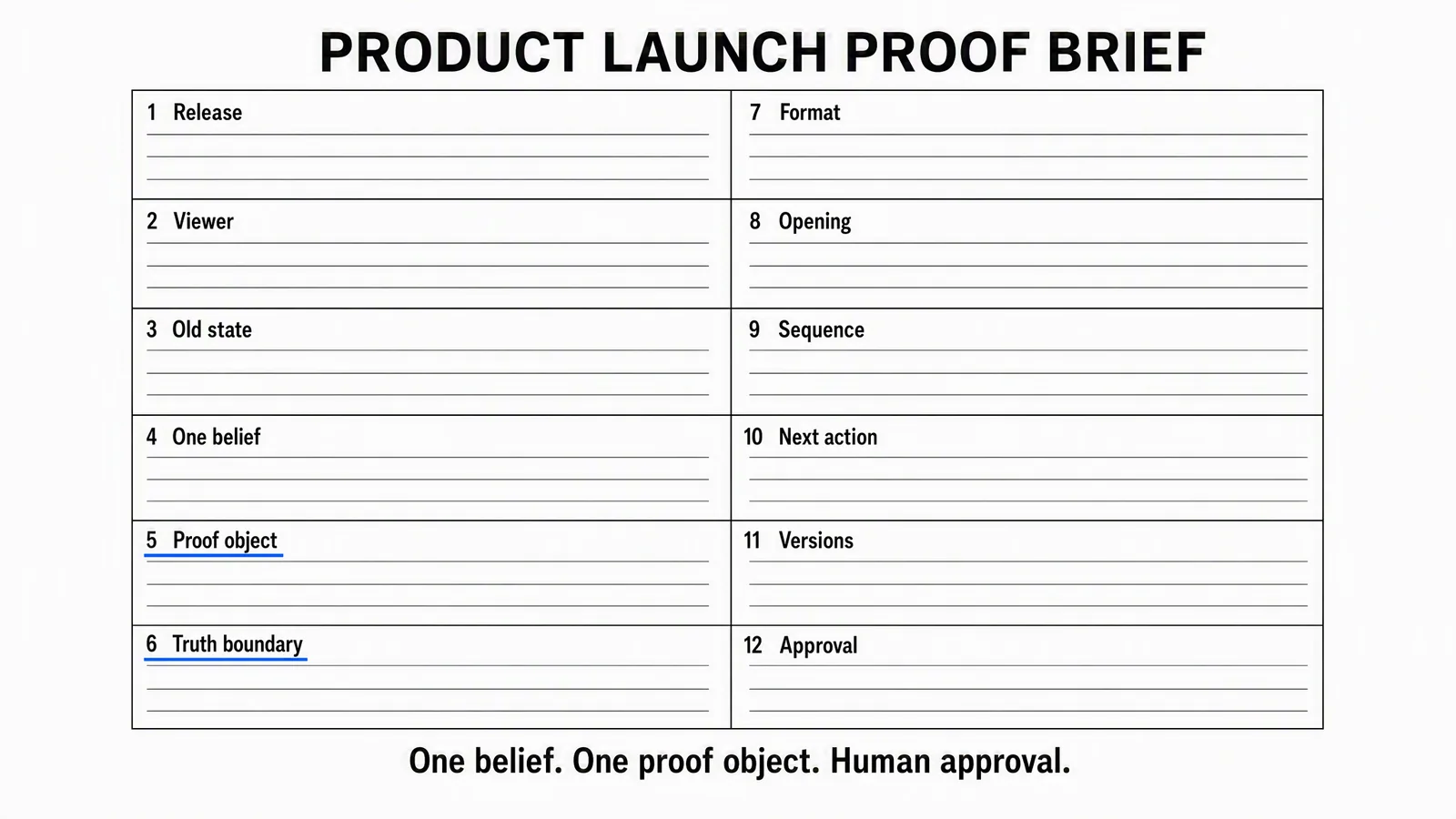
Use the blank worksheet for your own release. The filled example below shows the level of specificity to aim for; it is not a completed product approval.
|
Brief field |
Worked example: Weekboard launch |
|---|---|
|
Release |
A proposed weekly-planning app introduction. Confirm the actual version, store availability and launch date before final copy. |
|
Viewer |
A freelancer who already has tasks written down but hasn't assigned them to days. |
|
Old state |
Three tasks on an undated list. |
|
One belief |
“I can turn my existing task list into a visible weekly plan.” |
|
Proof object |
A real recording of those same three tasks moving into the calendar. Capture is still required. |
|
Truth boundary |
Fictional brief; placeholder screens are for the storyboard only. No time-saving or completion-rate claim. |
|
Format |
Screen demo supported by simple motion graphics. |
|
Opening |
The undated list, with the line “Your tasks need a place in the week.” |
|
Sequence |
Show the list, assign the tasks, inspect the calendar, then show the actual next step. |
|
Next action |
Visit the release page; change to an install link only when the listing is available. |
|
Versions |
One launch-page demo, one vertical social adaptation and one still thumbnail. Add other cuts only for a defined channel. |
|
Approval |
Product owner checks behavior and availability; creative owner checks the edit, rights and final destination. |
A proposed 30-second first cut could allocate 4 seconds to the list, 12 to the action, 8 to inspecting the calendar and 6 to the next step. That's an editing plan, not an optimal-length benchmark. If the calendar can't be understood in its allotted beat, simplify the frame or give it longer.
The launch-page and vertical versions share the same product truth. They needn't share identical framing. For a phone-first version, bring the decisive interaction closer rather than shrinking the entire desktop recording until its text becomes unreadable.
Test the small cut before building the full launch package
Use a rough edit to find comprehension problems while changes are still inexpensive. Storyboard mocks are fine for testing the intended story, provided viewers know they're mocks; they don't validate the actual product behavior.
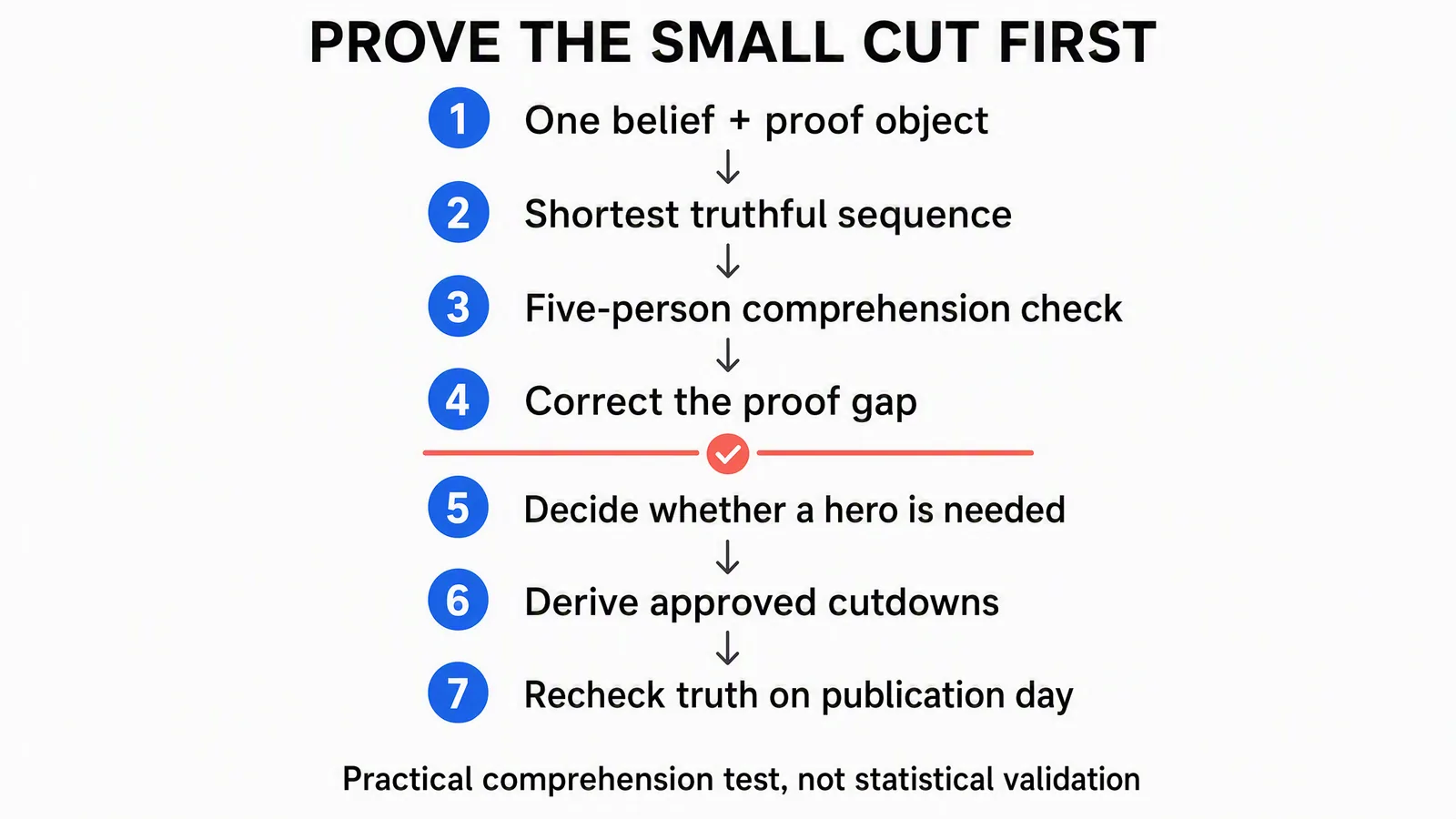
A practical production sequence. The five-person check is qualitative feedback, not statistical validation or a guarantee of launch performance.
Show the small cut to five people who didn't help make it. Ask them to describe what the product does, who it helps and what they'd click next. Don't explain the intended answer before they respond. Five is a convenient small review group, not a scientifically established sample size.
If they remember the animation but can't describe the action, move the action earlier. If they understand the product but expect a feature that isn't available, fix the implication. If they understand it and want a detail the film can't reasonably cover, put that detail on the destination page.
Notion's account of its 2022–2023 AI launch describes preparing the demo, website, user experience and waitlist, then gathering feedback between private alpha and general availability. That's launch-process context, not evidence for the five-person method. The useful lesson is to keep the film and the post-click experience aligned as the release changes.
Turn the brief into a launch campaign with Advibly
Start with the material that already exists: the product URL, App Store or Google Play listing, approved screenshots, real photos, logo and previous campaign assets. Save the relevant brand context so the video, thumbnail and carousel describe the same product. For agencies, keep each client's context separate.
Use Brand Intelligence when the brief needs sourced market context, competitor positioning or customer language. Then choose the production method that fits the selected format: an app explainer built around real screens, a presenter-led introduction, a physical product's supporting lifestyle scene, or an image-to-video reveal. Reuse a suitable asset before generating a replacement.
For the Weekboard-style job, a connected workflow could be:
- Gather the real app listing and cleared screen recordings; save the current feature and availability details.
- Develop the hook and storyboard around the one planning action. Use a simple visual treatment rather than decorative scene changes.
- Create supporting frames and the explainer sequence; assemble the real demonstration with voiceover, captions and transitions where needed.
- Derive the vertical cut, thumbnail and a LinkedIn or Instagram carousel from the same approved explanation.
- Review the actual outputs, including small-screen readability, exact product behavior and the destination link.
- Schedule approved, platform-adapted posts to supported connected accounts. Check publication status and available analytics after release to inform the next cut.
Advibly can support these creative and publishing steps through its portal or a compatible AI assistant connected through MCP. The initiating brief can coordinate several operations; it doesn't remove the required inputs, credits or review. Platform formats, account permissions and plan entitlements still apply. Publishing social content is separate from buying ad placements.
If your Instagram launch post offers a demo link, supported keyword comment-to-DM automation can deliver it. Attach that flow to the relevant post and describe the actual destination. Configuring the automation is not proof that a particular viewer received the message.
Create your launch assets in Advibly, starting from the product sources and format you've chosen. A simple screen recorder remains a sensible option when one unadorned interaction is the entire story. Spend the production effort on what helps the viewer understand the release.
How long should a product launch video be?
Long enough to complete its job without making the viewer wait through unrelated material. Use the worked 30-second plan above as a starting exercise, not a rule. A teaser can be much shorter; an adoption walkthrough can need more time. Test whether the decisive action remains understandable before cutting seconds for their own sake.
Do you need a different video for every platform?
You need an appropriate version for each chosen placement, not an entirely new idea every time. Reframe the important action, adapt captions and the next step, and verify the destination's current requirements. If a cut loses the evidence that made the original clear, re-edit it rather than relying on the caption to repair the missing explanation.