
An AI image-to-video generator animates a still you already have instead of inventing a scene from a text prompt. That matters for product marketing, because the still is usually the one asset you cannot afford to get wrong: the packaging, the label, the interface, the logo.
Advibly runs three video models over your product image and saved brand context: Seedance 2.0, Gemini Omni Flash, and Kling v3. This page covers what each one is good at, what a clip costs, and how to brief the motion so the product survives it.
Key takeaways
- Starting from an image gives you control over the thing text prompts get wrong most often: exact product geometry, label text, and colour.
- Three models, different jobs. Seedance 2.0 goes to 1080p and 15 seconds, Gemini Omni Flash is the only one that edits an existing clip, and Kling v3 holds up to four recurring characters or objects consistent across shots.
- A 10-second 720p clip runs 2.6 to 3.6 credits depending on model, where 1 credit is $1.
- Resolution moves the price far more than the quality tier does. Seedance Pro costs 3.6 credits at 720p and 9.0 at 1080p for the same 10 seconds.
- Write the motion brief before you generate. Decide what must move and, more importantly, what must not change.
What image-to-video is actually good at
Text-to-video invents everything, including the parts of your product it has never seen. Image-to-video starts from a fixed frame, so the model spends its effort on motion rather than on guessing what your bottle looks like. For a launch teaser, a scroll-stopper, or a hero loop built from an existing product photo, that constraint is the feature.
It is not the right tool for everything. If the clip needs a person speaking to camera, a multi-scene narrative, or a demonstration of something the source image does not show, you are asking the model to invent, and you should either shoot it or use a workflow built for that. Image-to-video is at its best when the story is "this thing, made to move".
The broader market has settled into this pattern too. Roughly one-third of video ad assets now use generative AI, up from one-fourth a year earlier, according to the IAB 2026 Digital Video Ad Spend & Strategy Report published 14 July 2026. The same report found 96% of smaller buyers are not satisfied with how they currently use GenAI for creative production, and more than 40% want better proof of performance. Generation is not the hard part anymore. Control is.
Write the motion brief before you generate
A useful brief is more precise than "animate this image". Decide four things first, and be explicit about what has to stay untouched.
|
Brief decision |
Example |
What to protect |
|---|---|---|
|
Subject |
A product bottle on a clean background |
Label, shape, colour, and proportions |
|
Motion |
Slow push-in with a small light sweep |
No product warping or invented parts |
|
Purpose |
Six-second launch teaser |
One idea, not a full product explanation |
|
Destination |
Vertical social placement |
Safe framing for the final crop and captions |
The "what to protect" column is the one people skip. Models drift most on small high-detail regions, which is exactly where your brand lives.
Which model should you use?
The three models in Advibly are not ranked. They trade different things off.
|
Model |
Best for |
Length |
Resolution |
Aspect ratios |
|---|---|---|---|---|
|
Seedance 2.0 (ByteDance) |
The default. Longest clips, highest resolution, widest format support, plus end-frame control and up to 4 reference images. |
4 to 15s |
Up to 1080p |
9:16, 16:9, 4:3, 3:4, 1:1, 21:9 |
|
Gemini Omni Flash (Google) |
Physical realism, and the only option that edits an existing video rather than generating a new one. |
4 to 10s |
720p |
9:16, 16:9 |
|
Kling v3 (Kuaishou) |
Cinematic multi-shot work, and keeping up to 4 recurring characters or objects consistent across clips. |
3 to 15s |
720p |
9:16, 16:9, 1:1 |
In practice: reach for Seedance when you need 1080p, a 15-second clip, or an unusual aspect ratio. Reach for Gemini Omni Flash when the motion has to obey physics, or when you already have a clip you want to restyle. Reach for Kling when the same character or product has to appear across several shots and look like itself each time.
What a clip costs
Advibly prices generation in credits, where 1 credit is $1. Generation is not unlimited on any plan. For a 10-second clip at 720p, the spread across models is narrow.
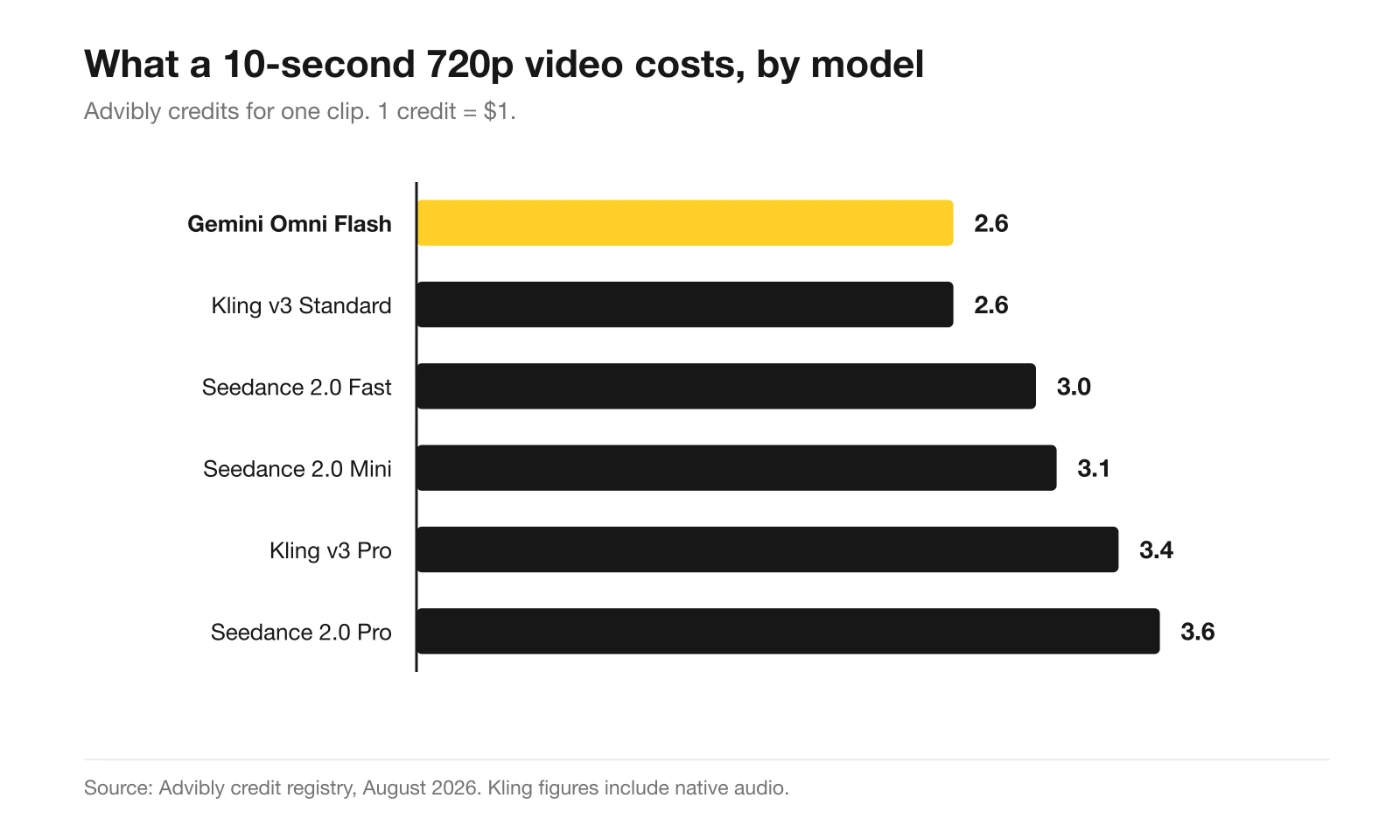
Two things in that chart are worth knowing before you pick a setting.
First, Seedance Mini costs slightly more than Seedance Fast at 720p (3.1 credits against 3.0), even though Mini is the lower tier. Mini earns its place at 480p, where it runs 1.5 credits. At 720p there is no reason to choose it over Fast.
Second, resolution is the real cost lever, not the tier.
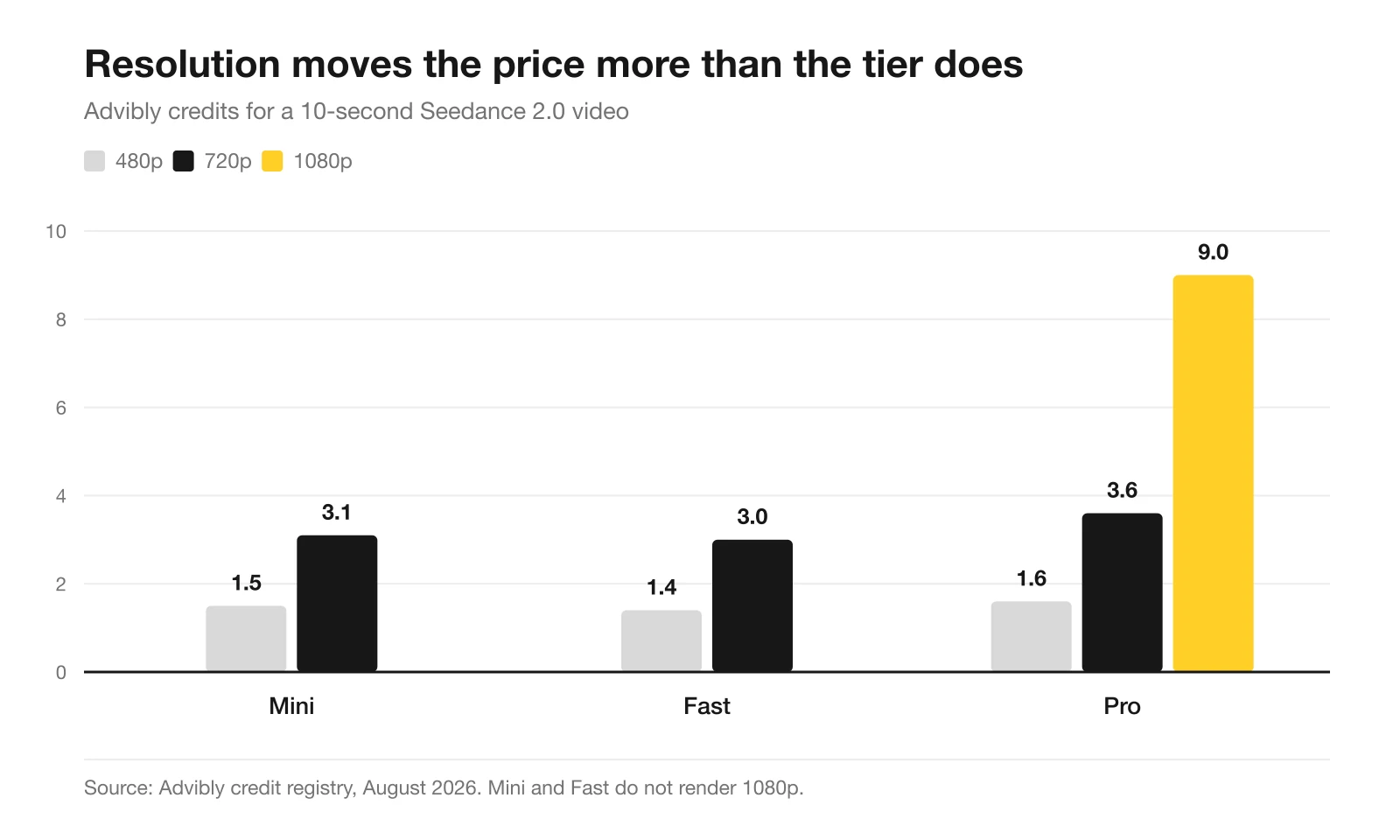
Moving Seedance Pro from 720p to 1080p takes the same 10 seconds from 3.6 credits to 9.0, a 2.5x jump. Moving from Fast to Pro at 720p costs 0.6 credits. If you are testing hooks, test at 480p or 720p and only render the winner at 1080p. Current rates are on the pricing page; the figures here are for August 2026.
How the workflow runs
- Add the source material. Upload a product image or screenshot, or pull product context from a website, App Store listing, Play Store listing, or storefront. Add logos and brand files when they affect the output.
- Use saved brand context. Product facts and brand assets stay with the brand instead of being retyped for every generation. A brand kit gives each clip a consistent starting point.
- Pick the model and settings. Choose the model, tier, resolution, duration, and aspect ratio for the job. The credit cost is shown before you generate.
- Review before you use it. Check product details, framing, movement, captions, and brand fit. AI output needs a human pass, especially when the source image carries packaging, interface text, or fine detail.
- Carry the approved clip forward. Keep it with the rest of the campaign, add it to the calendar, or push it out through the scheduler.
Why brand context matters after the first frame
An image shows what a product looks like. It does not say what the product does, who it is for, or which claims are safe to make. Saved brand memory gives the generation step that context, which shows up in the copy, the framing choices, and the things the model avoids.
It does not remove the review step, and no tool can promise perfect brand adherence on every render. What it does is raise the floor, which matters most for teams generating repeatedly. A SaaS company starts from an interface screenshot and an app listing. An ecommerce brand starts from a storefront, a product image, and a logo. An agency keeps separate source material and brand memory for several clients in one workspace.
Four image-to-video mistakes worth catching
- The product changes shape. Compare the first and last frames against the source, and look hardest at packaging, buttons, logos, and interface text.
- Motion competes with the message. Cut the camera movement when the viewer needs to read a small detail.
- The crop breaks at the destination. Confirm the aspect ratio before approval, not after the campaign is assembled.
- The clip implies a claim you cannot support. Remove demonstrations, labels, or outcomes that are not in the source material.
Frequently asked questions
What is an AI image-to-video generator?
It is a model that takes a still image as its first frame and generates motion from it, rather than building a scene from a text description alone. You supply the image plus a prompt describing the movement. The output is a short clip, typically 3 to 15 seconds, that keeps the source composition.
How long can an AI-generated video be?
In Advibly it depends on the model: Kling v3 runs 3 to 15 seconds, Seedance 2.0 runs 4 to 15 seconds, and Gemini Omni Flash runs 4 to 10 seconds. Longer pieces are built by generating several clips and stitching them, not by asking one model for a long render.
How much does it cost to turn an image into a video?
A 10-second 720p clip costs between 2.6 and 3.6 credits depending on the model, where 1 credit is $1. Dropping to 480p roughly halves it, to about 1.4 to 1.6 credits. Rendering Seedance Pro at 1080p raises it to 9.0 credits for the same 10 seconds.
Which model keeps a product looking accurate?
All three animate from your frame, so accuracy depends more on the brief than on the model. Say what must not change, keep the camera movement modest, and avoid asking for angles the source image does not contain. If a clip needs to obey physical behaviour such as pouring, falling, or folding, Gemini Omni Flash is the one built for that.
Can I edit a video I already have?
Yes, with Gemini Omni Flash, which is the only model here that takes an existing clip as input and restyles or edits it. The other two generate from a still or from text.
Do I need a product photo to start?
No. You can start from a website, an App Store or Play Store listing, or a storefront, and Advibly pulls product context and imagery from it. A clean product photo gives the most control over the result, so it is worth uploading one if you have it.
Start from the image you already have
Bring one product photo or a fuller product source, keep the brand context with the work, pick the model that matches the job, and review before it ships. If you are testing, generate cheap and render the winner properly.
Sources
- IAB, 2026 Digital Video Ad Spend & Strategy Report, 14 July 2026. GenAI share of video ad assets and buyer satisfaction.
- Model capabilities and credit rates: Advibly video model catalogue and credit registry, August 2026. Live rates are shown before each generation and on the pricing page.